
Manage your TELUS eClaims connections through Noterro to streamline claims processing with ease. This guide will walk you through adding, editing, disabling, and deleting TELUS eClaims connections, ensuring a seamless experience without the need to access the TELUS portal directly.
Adding TELUS eClaims Connections
Follow these steps to add a TELUS eClaims connection in Noterro:
- Log in as the Admin.
- Click on the Gear icon (top right header).
- Select Insurance.
- Scroll to the TELUS eClaims section.
- Click Add New to create a new connection.
- Add a Connection Name for internal identification in Noterro.
- For Organization connections: Turn on the toggle switch and provide your TELUS Clinic Name, CPR-ID, select location, enter TELUS Location ID, and select the Type from the dropdown menu.
- For Independent accounts: Enter your TELUS Location ID and select Type for all locations.
- Click Save & Continue.
Next, connect your users as described below.
Connecting Users
Connect your clinic’s users to interact with TELUS eClaims:
- Click Connect for each user.
- For the Admin User, input the Username and Password from the TELUS account.
- For Practitioners, input their Name, TELUS Provider ID (CPR-ID), Role, Issuer, and License number.
Important Note: Access user settings anytime by clicking Manage Users after connections.
Locating TELUS Health eClaims Setup Values
Access these values from your TELUS eClaims account:
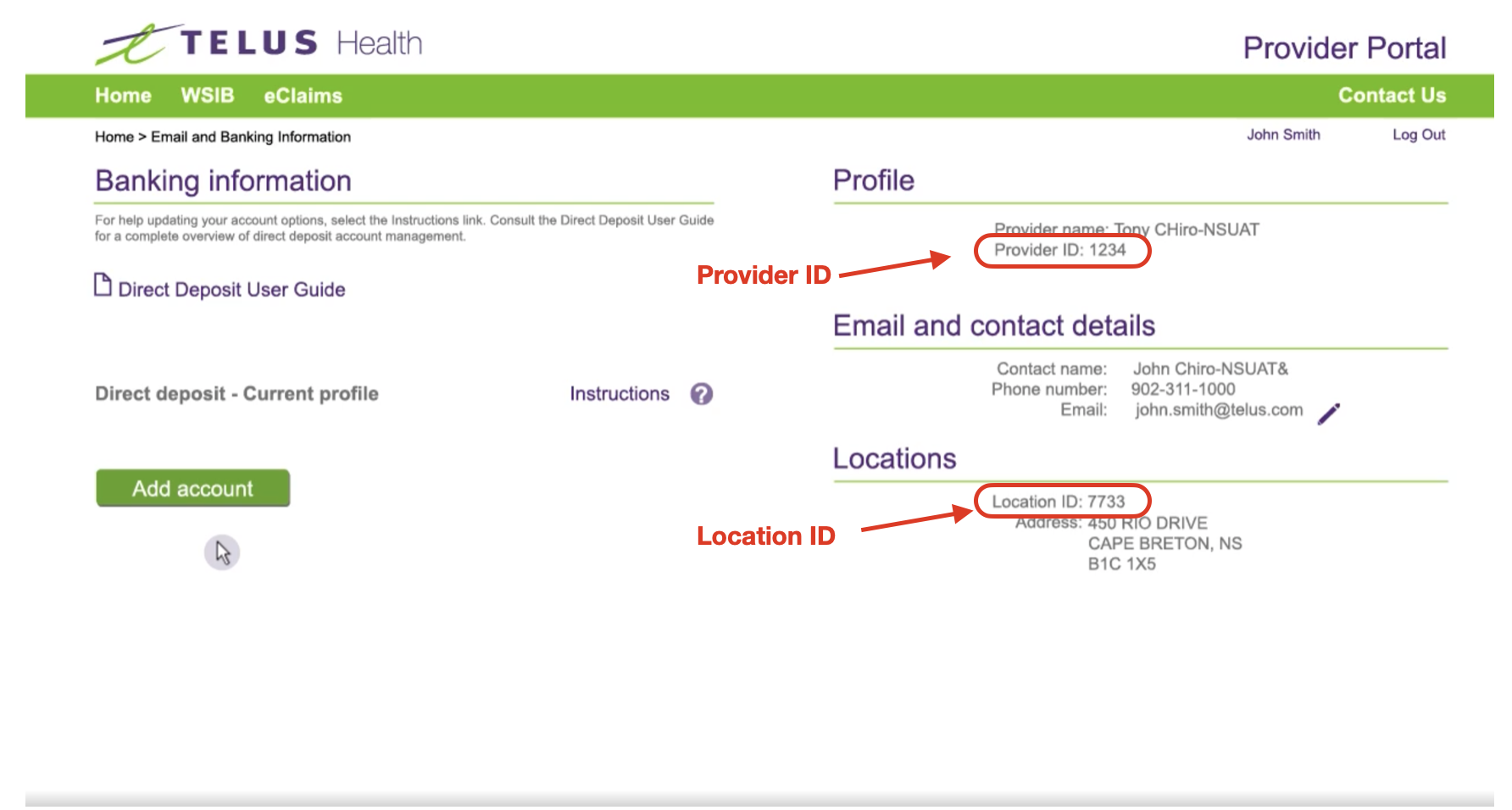
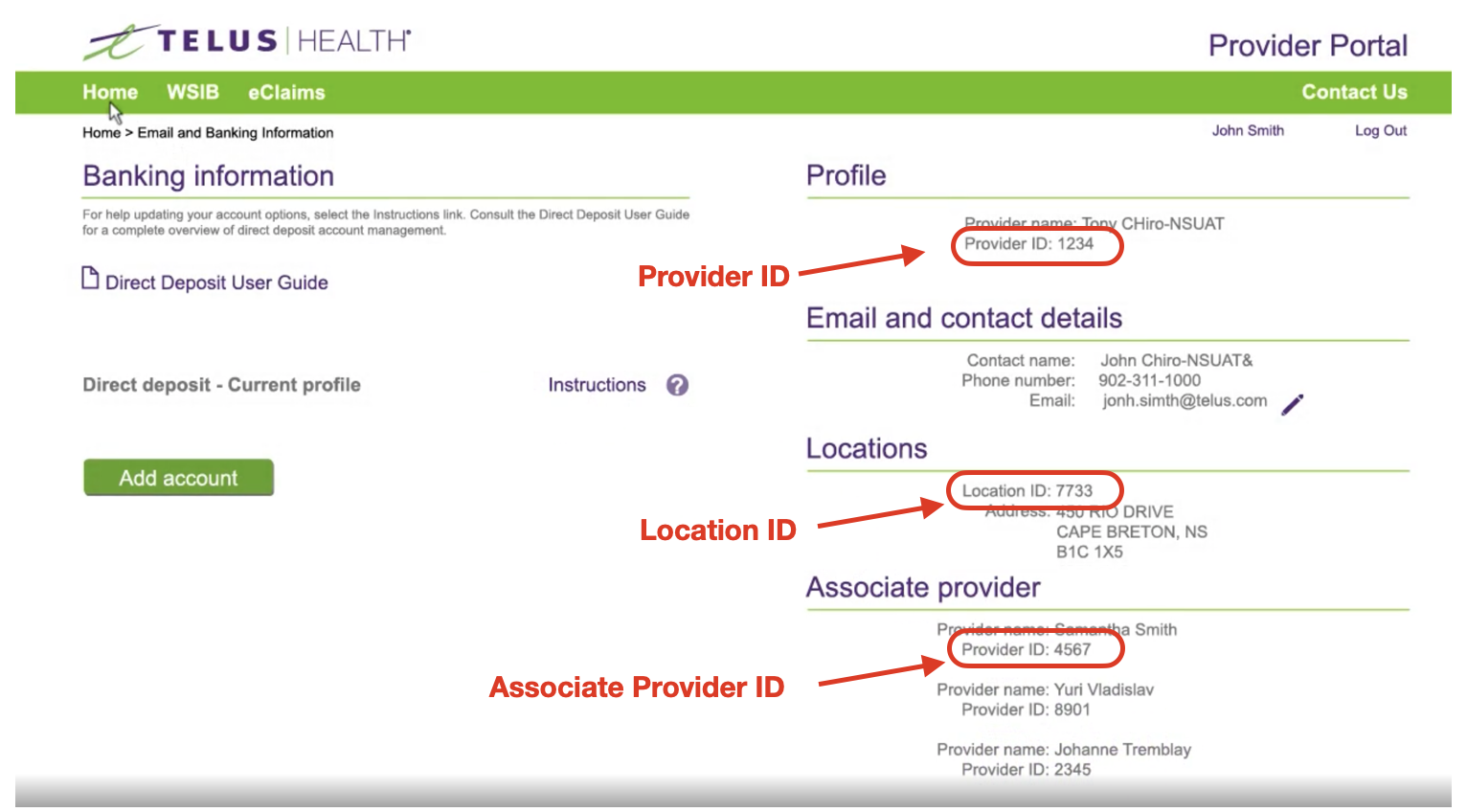
- Organization Name and CPR ID: Log in to the eClaims portal with an Administrator account. Click Email and Banking Information. View details at the top right of the page under “Profile.”
- Location ID: A 5-7 digit number. Log in with an Administrator Account, click Email and Banking Information, and view details on the page's right side.
- Username and Password: Use the login credentials for the eClaims portal.
- First & Last Name: Match your name as in the TELUS Health eClaims account.
- PrIndependent Userovider CPR ID: A 4-7 digit number. Login and view at the bottom right under Associate Providers for Organizations, or in Profile for Independents.
Independent User
Organization User
TELUS eClaims Insurers
Map your active insurers to TELUS for seamless compatibility and claim submission:
- Log in as the Admin.
- Click on the Gear icon (top right header).
- Select Insurance.
- Scroll to the TELUS eClaims Insurer section.
- Click Edit.
- Use the dropdown menu to match insurers in Noterro with TELUS.
- Add Insurers by clicking Select Insurers, toggle desired insurers on, then click Connect.
- Click Save.
TELUS eClaims Coordination of Benefits
Coordination of benefits applies when a patient is covered under more than one plan, either with a single insurance company or with multiple insurers. Coordination rules determine which insurer or plan pays first and which one(s) pay(s) subsequently.
You can use coordination of benefits if both the primary and secondary coverage are under the same insurance company and through an insurer that supports coordination of benefits. When you submit the coordination request, only the primary is processed in real-time; the second claim is processed manually and sent to the recipient member. Currently, coordination of benefits is only supported for different insurers if the patient's coverage is with Canada Life and Claims Secure.
The secondary coverage section is optional because not all patients have secondary coverage. However, if the patient does have secondary coverage, this section must be completed so that this information can be provided to the primary insurer for claim adjudication.
Determining Coverage
When both spouses have their coverage, primary and secondary coverage are determined using the following guidelines:
- Patients submit their claims under their plan (policy) and identify their spouse’s (policy) for secondary coverage.
- If the patient is a child covered under both policies, the claim should be submitted under the parent's policy whose birthday occurs at the earliest in the year. For example, if the first parent's birthday is February 1 and the second parent's birthday is September 1, list the first parent's policy as primary and the other’s secondary policy.
If encountering errors while checking eligibility or claims, refer to the common TELUS eClaims Error Messages for solutions.
For assistance on claims submission, payments, and more, visit the TELUS Support resources:
Comments
0 comments
Please sign in to leave a comment.